
Build a quote
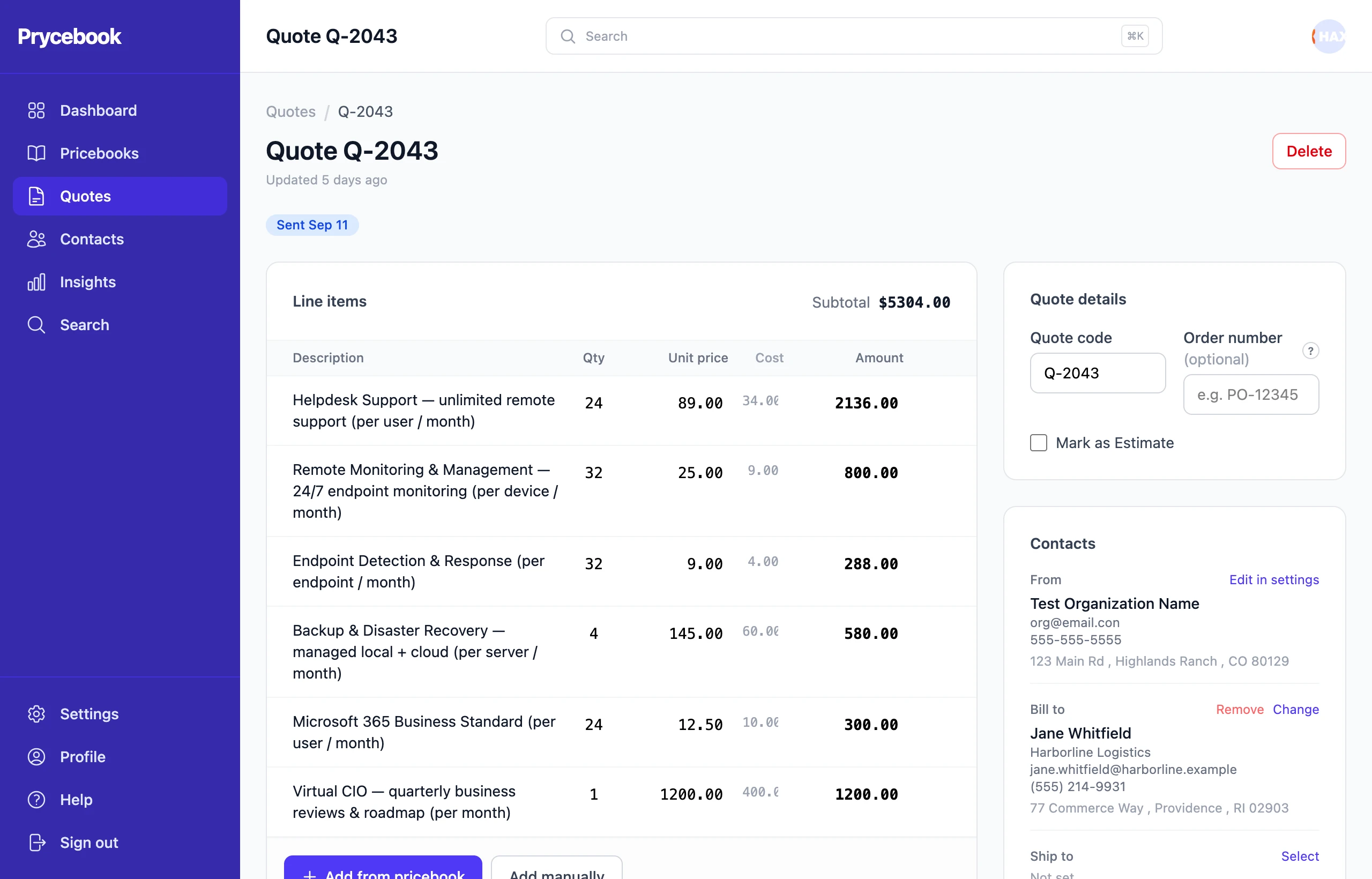
Create a quote, add items from your pricebook, and fill in the customer and terms.
A quote pulls items from your pricebook, adds any discounts, taxes or fees, and gives your customer a link they can accept from their phone. Everything on the quote screen saves as you go; there is no save button.
Create a quote
- Open Quotes and choose New Quote.
- The quote opens straight away with the next quote number. To change it, edit Quote code.
Quoting a job you have quoted before? Start from a template or Duplicate quote an old one instead.
Add items from your pricebook
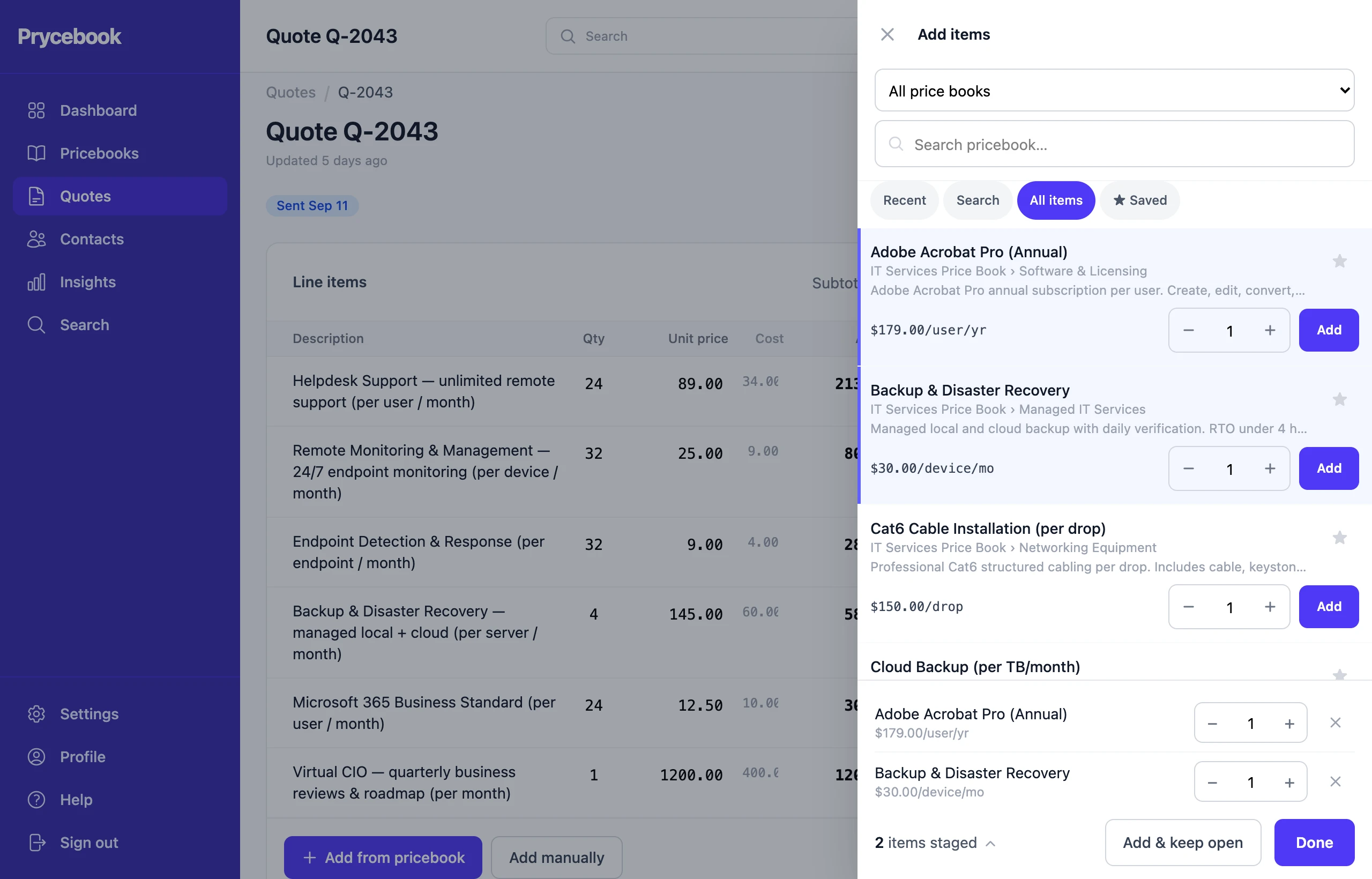
- Under Line items, choose Add from pricebook. A panel opens over the quote.
- Find an item. Recent shows what you used lately, ★ Saved your favorites, and All items everything. Or type a name, code or SKU in the search box. Narrow to one pricebook or category with the menus at the top.
- If the item has several prices, pick the tier. Set the quantity with − and +.
- Choose Add. The item is staged at the bottom of the panel; tap the count to check or change what is staged.
- Stage as many items as you need, then choose Done to add them all and close the panel, or Add & keep open to add them and keep going.
An item that includes other items arrives with its parts as sub-items.
Add a one-off line
For something that is not in your pricebook:
- Choose Add manually.
- Enter a description, quantity and unit price. Leave Amount blank and it is worked out for you. Cost is optional and never shown to the customer.
- Choose Add.
If you will sell it again, open the line's ⋯ menu and choose Save to pricebook to file it under a category.
Change a line
- Edit the quantity, unit price or cost right in the row.
- Type over the Amount to charge a set figure regardless of quantity. Clear it, or change the unit price, to go back to quantity × unit price.
- The ⋯ menu on a line adds a sub-item beneath it, hides it from the customer (see Hide line items), or deletes it.
Cost and margin
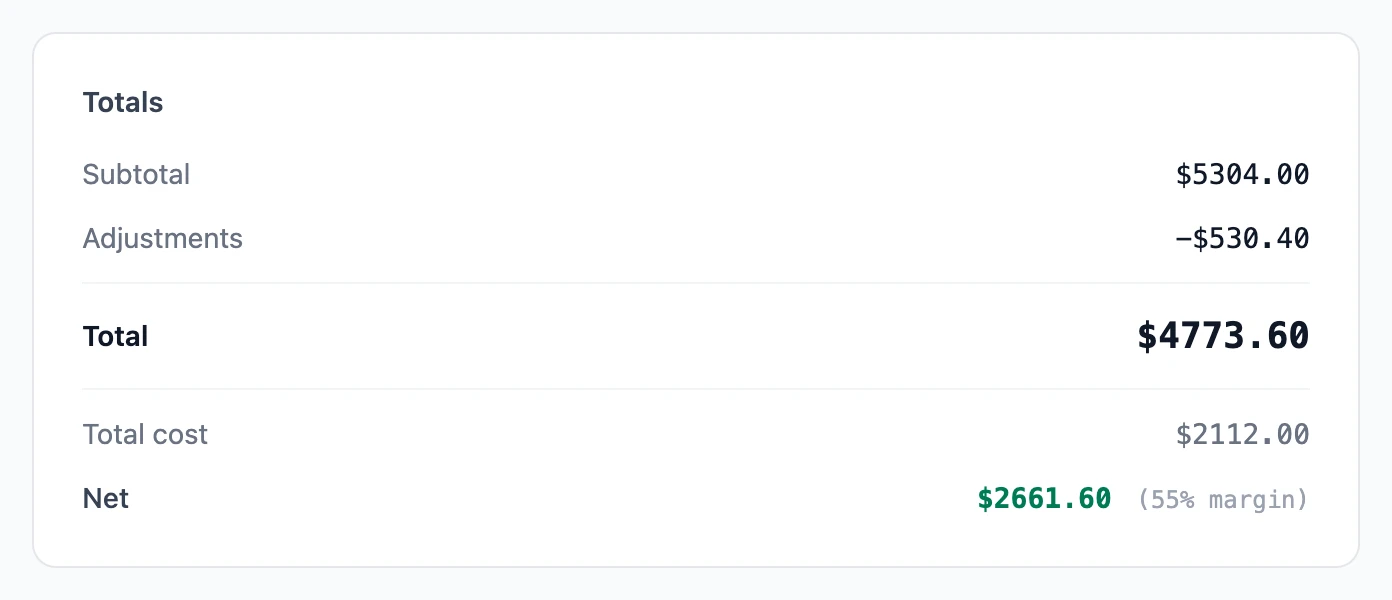
When lines on the quote have a cost, Totals shows your Total cost and Net with the margin percentage. Only you see these; they never appear on the quote your customer receives. If some lines have no cost, a warning says how many, because the margin shown is then higher than reality.
Choose the customer
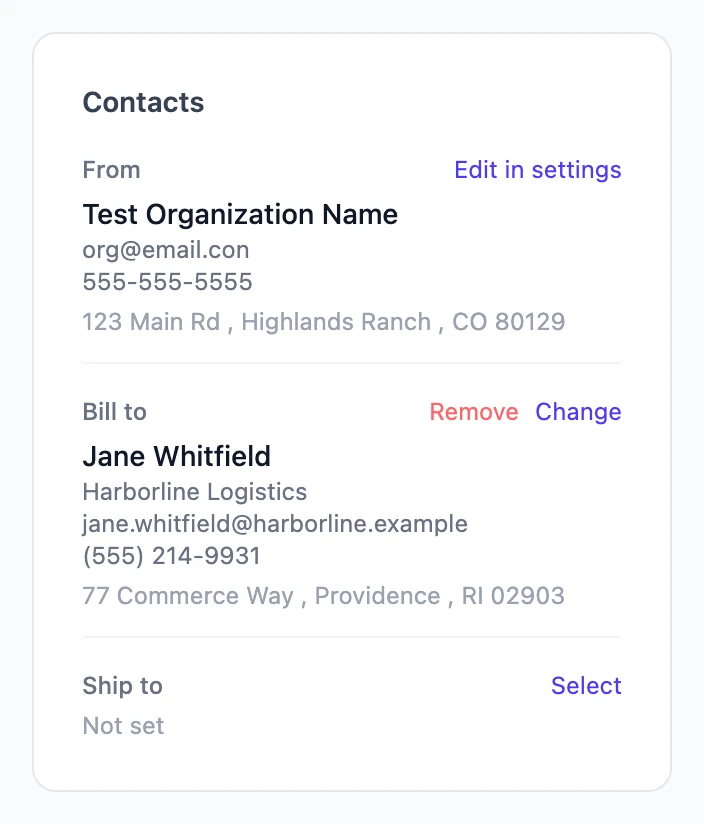
Under Contacts:
- From is your company, taken from Settings.
- Bill to is who pays. The quote is emailed to this contact when you send it, so make sure they have an email address.
- Ship to is where the work happens, if that is somewhere else.
Search for an existing contact, or create a new one right there without leaving the quote.
Order number and estimates
Order number is the customer's own reference for the job, usually their purchase order number. It prints on the quote so their accounts team can match it up. Leave it blank if they did not give you one.
Tick Mark as Estimate when the price is a rough figure rather than a firm offer. The customer's copy is then titled as an estimate.
Payment terms and notes
Payment terms say how and when you expect to be paid, printed exactly as written: "Net 30" or "50% deposit, balance on completion". Keep them short and specific, and if you also set a due date, make the two agree.
Notes is for anything else the customer should read: what is included, what is not, access arrangements.
Next steps
Set the dates (Issue, expiration and due dates), add any discounts, taxes or fees, then send it.