
Add and edit items
Names, codes, costs, price tiers, photos and items made of other items.
An item is anything you put on a quote: a part, a piece of equipment, an hour of labor, a whole job.
Add an item
- Open the pricebook and choose New item.
- Enter a Name and pick its Category.
- Fill in Price, and anything else below that helps.
- Save. You can add a photo and more price tiers once the item exists.
To add an item quickly without leaving the list, use Add item on a category's header and type just a name.
Code
A short reference you assign so you can find an item fast and add it to a quote by typing it, like PLM-TOILET or LABOR-HR. Keep codes unique within a pricebook; letters, numbers and dashes work best.
SKU
The manufacturer's or supplier's stock number, copied exactly as the vendor lists it, so you can match the item to their catalog when you order. Leave it blank for labor and services.
Cost
What the item costs you: parts at your buy price, labor at what you pay for the hours. Customers never see it. When you add the item to a quote the cost comes with it, so the quote can show your margin.
Leave cost blank if you do not know it. A blank cost is treated as unknown, not free, and the quote tells you when its margin is missing some costs.
Price tiers
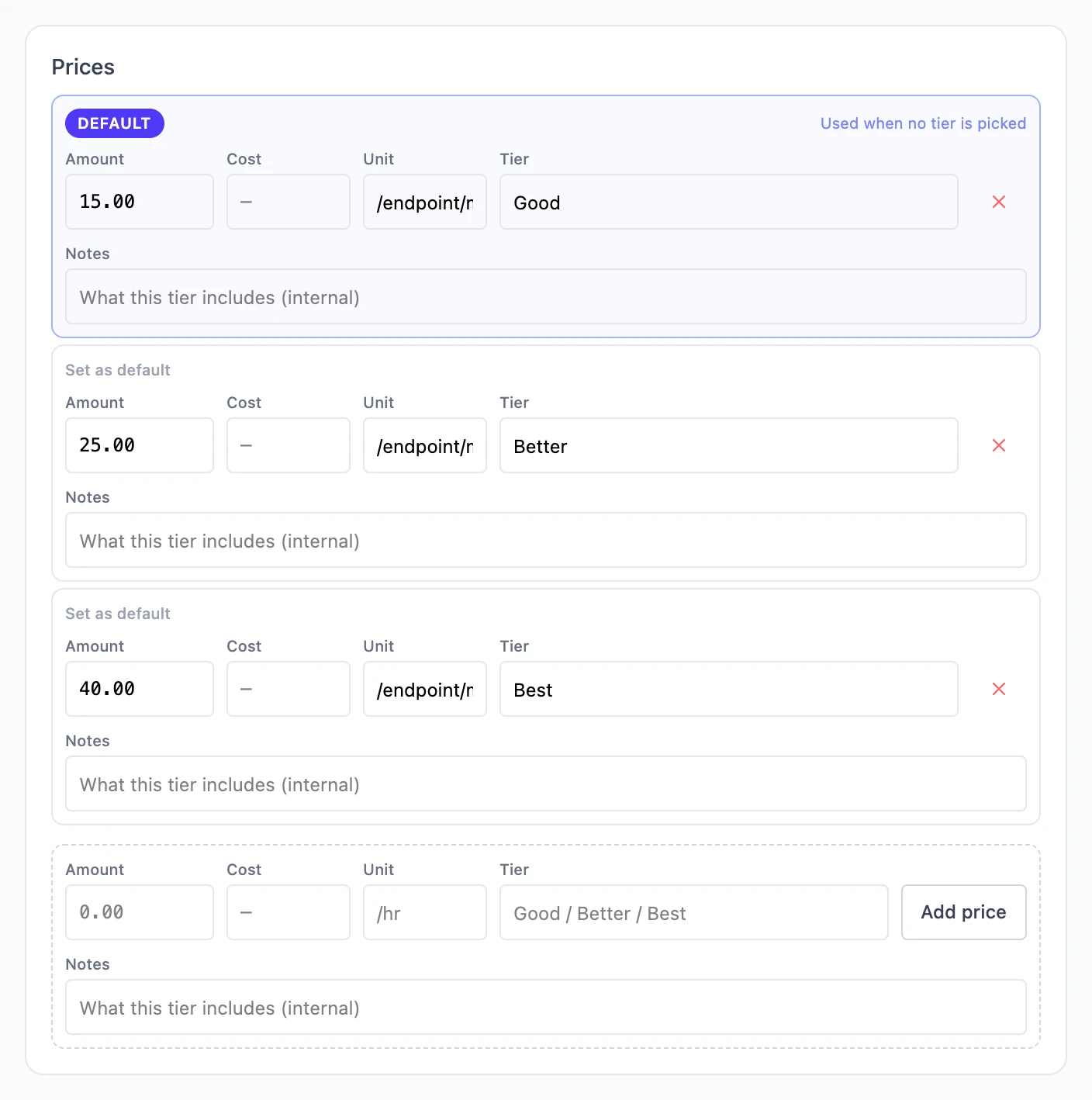
An item can have more than one price, for example Good, Better and Best options, or a standard and an after-hours rate. Tiers are on the item's edit page under Prices.
- Enter the Amount.
- Optionally enter the tier's own Cost (blank uses the item's cost), a Unit printed after the price such as
/hroreach, a Tier name, and internal Notes. - Choose Add price.
One tier is the Default: the price used when nobody picks a tier. Choose Set as default on another tier to change it. When you add an item with several tiers to a quote, you pick the tier right there.
Photos
On the item's edit page, choose Take or choose a photo. On a phone this opens the camera, so you can photograph a part where it is.
Items made of other items
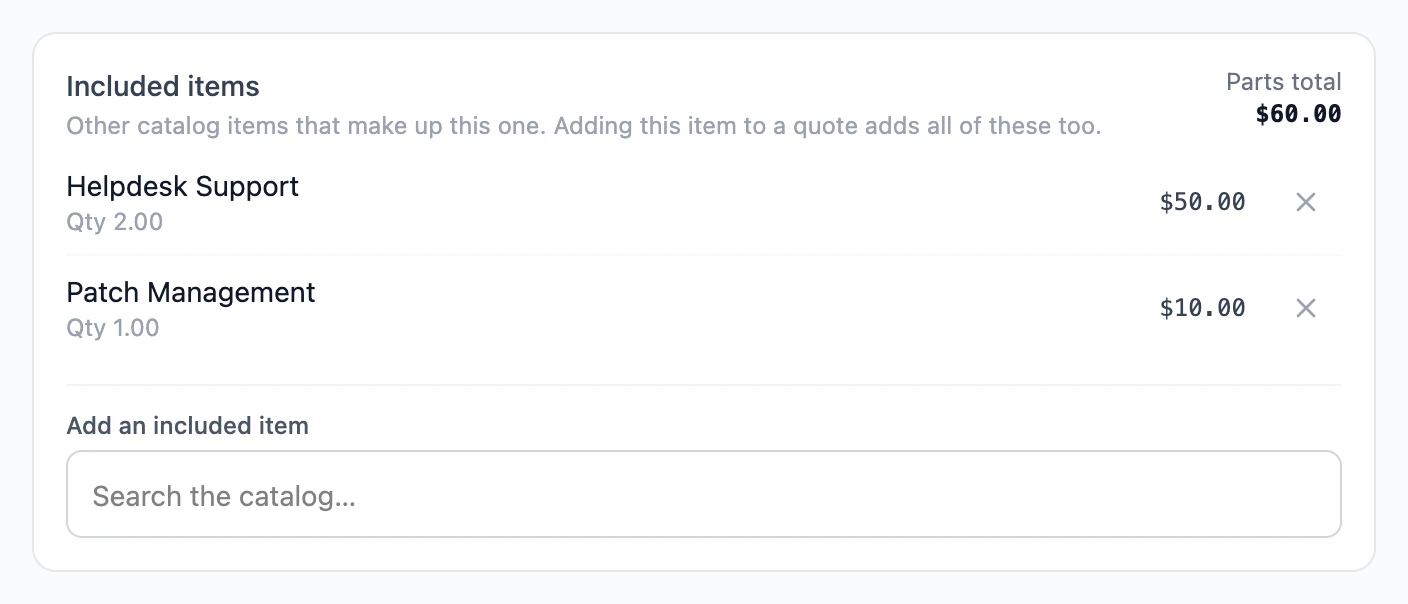
Some jobs are always the same set of parts and labor. Define the job once, and adding it to a quote brings every part with it.
- Open the job's item, for example "Toilet replacement", and go to Included items.
- Search the catalog under Add an included item and pick each part. If a part does not exist yet, you can create it from the same search.
When you create a new item, you can also list up to five components right on the form; they are created in the same category when you save.
Duplicate or delete an item
Use the ⋮ menu on the item's row and choose Duplicate or Delete. Deleting an item does not change quotes it is already on.