
Pricebooks, categories and tags
How a catalog is organized, and how to create one from scratch or a starter template.
A pricebook is a catalog of everything you sell, with your prices. Inside it, categories group related items ("Water heaters", "Labor", "Permits"), and tags cut across categories ("Emergency", "Seasonal").
Most businesses need one pricebook. A second is worth it when you price the same work differently for different customers or seasons, such as residential and commercial.
Create a pricebook
- Open Pricebooks and choose New Pricebook.
- Give it a name that says what it is for, like "Residential 2026", and an optional description.
- Choose Create pricebook.
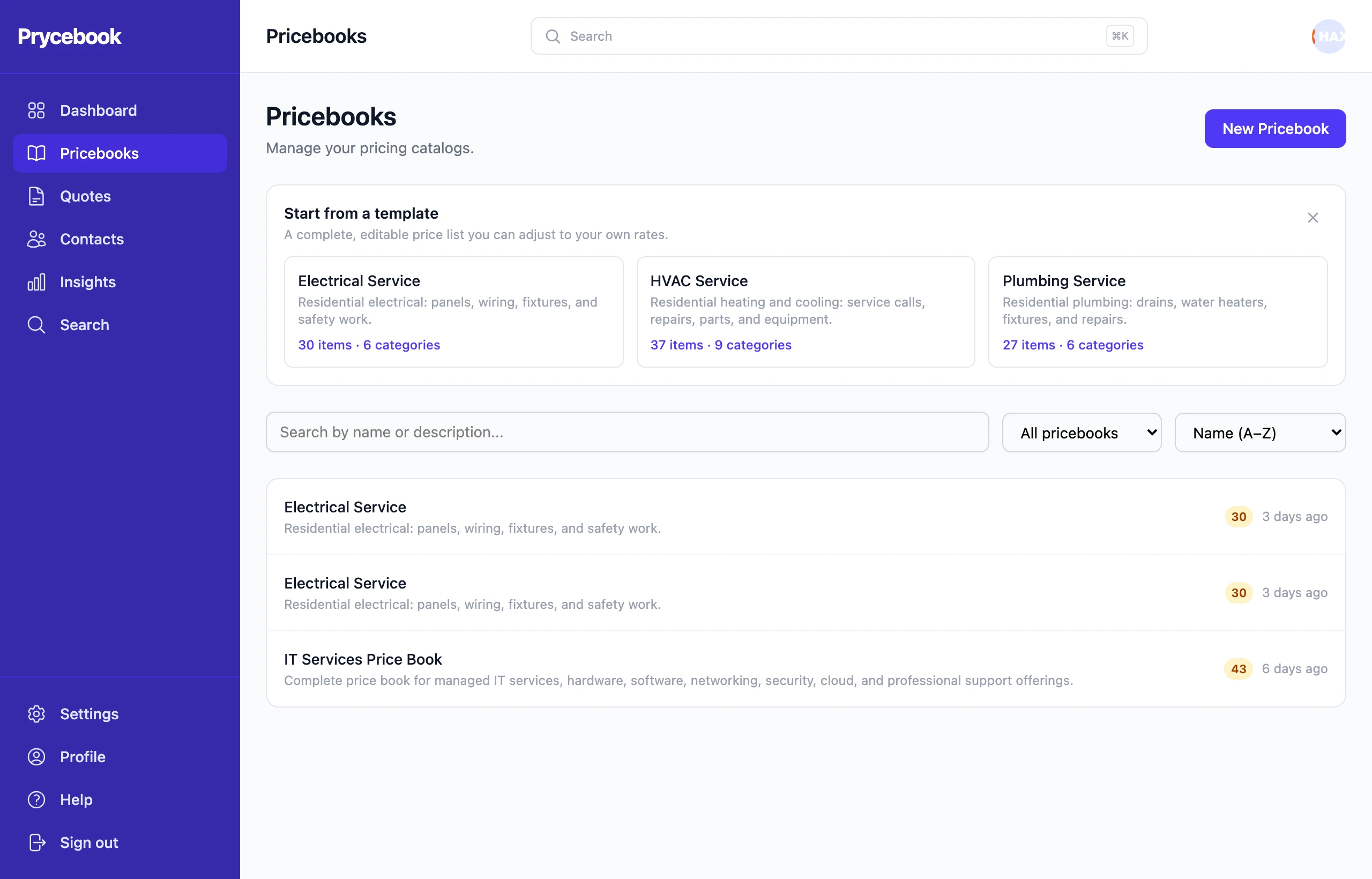
Start from a template
If you are starting from nothing, the Pricebooks page offers ready-made price lists for trades like HVAC, plumbing and electrical. Choosing one creates a normal pricebook full of categories and items that you edit like any other. Change the prices to your own before you quote from it.
Admins can hide the templates, and bring them back from Settings → Pricebooks → Show starter templates.
Add categories
Every item lives in a category, so create categories first.
- Open the pricebook and stay on the Categories tab.
- Choose Add category, enter a name and an optional description, and choose Add category again.
Two or three broad categories beat twenty narrow ones; you can split them later. To rename or delete a category, use Edit category or Delete category on its header. Deleting a category deletes every item in it.
Use tags
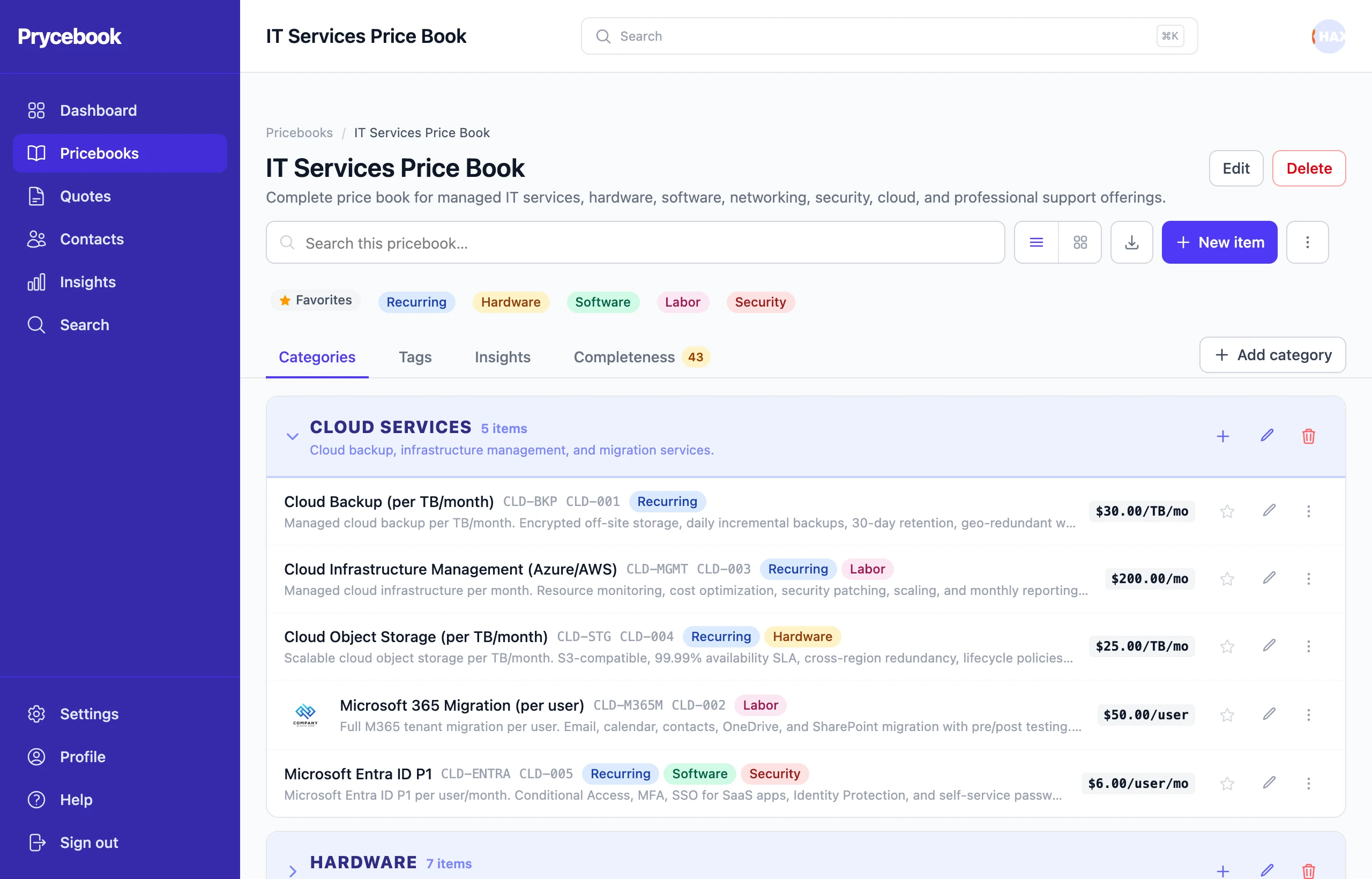
Create tags, with a color, on the pricebook's Tags tab. Add them to an item from the item's edit form, or to many items at once with bulk actions. Tap a tag above the item list to show only items with that tag; tap more tags to narrow further, or Clear tags to show everything.
Favorites
Star the items you use most. Favorites above the item list shows only your starred items, and they appear under ★ Saved when you add items to a quote. Favorites are yours; your teammates each have their own.
Change the order of items
- Open the More actions menu (⋮) at the top of the pricebook and choose Reorder items.
- Use the up and down arrows to move items within their category.
- Choose Done.
A category nobody has reordered is listed alphabetically. Reordering is unavailable while a search or tag filter is active.
Other tabs
- Insights shows what this pricebook's items have earned on quotes.
- Completeness lists items with missing or suspicious details. See Catalog completeness.
Delete a pricebook
Admins and owners see Delete beside the pricebook's name. It deletes all of the pricebook's categories, items and tags and cannot be undone. Quotes you already built keep their line items. To rename a pricebook instead, choose Edit.