
Send a quote and get it accepted
Email a quote, what your customer sees, and what happens when they accept.
Check it first
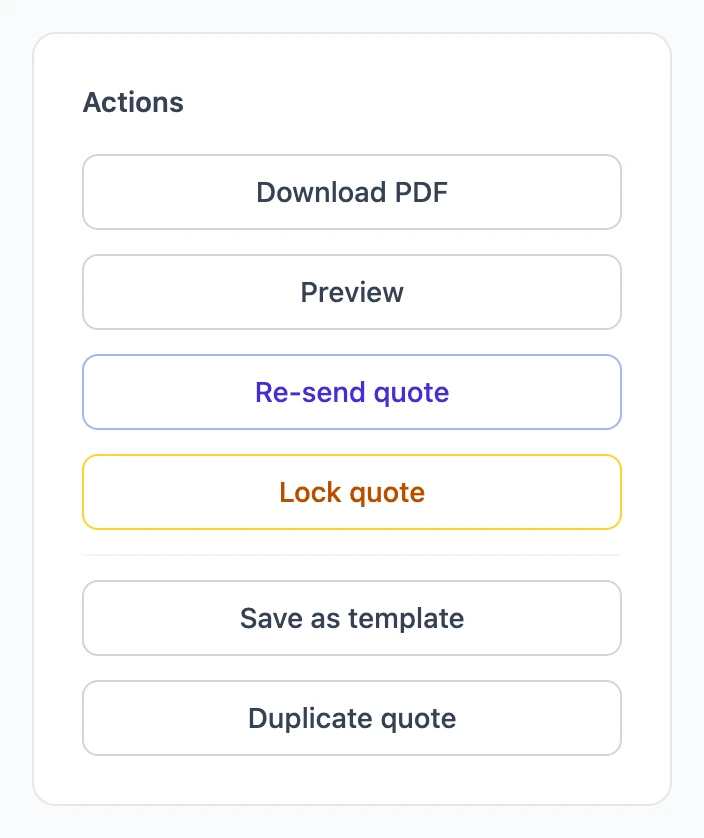
- Preview opens the quote exactly as your customer will see it, in a new tab.
- Download PDF saves the printable copy. It can take a few seconds.
Logo, colors and layout come from your settings; see Customize how quotes look.
Send the quote
- Make sure the Bill to contact has an email address.
- Under Actions, choose Send quote and confirm.
Your customer gets an email with a link to the quote and the PDF attached, and the quote is marked Sent with the date. Sent a quote to a contact with no email? It is still marked sent, and you can share the PDF yourself.
Send it again
Changed something, or the customer lost the email? Choose Re-send quote. The confirmation names the address it will go to.
How your customer accepts
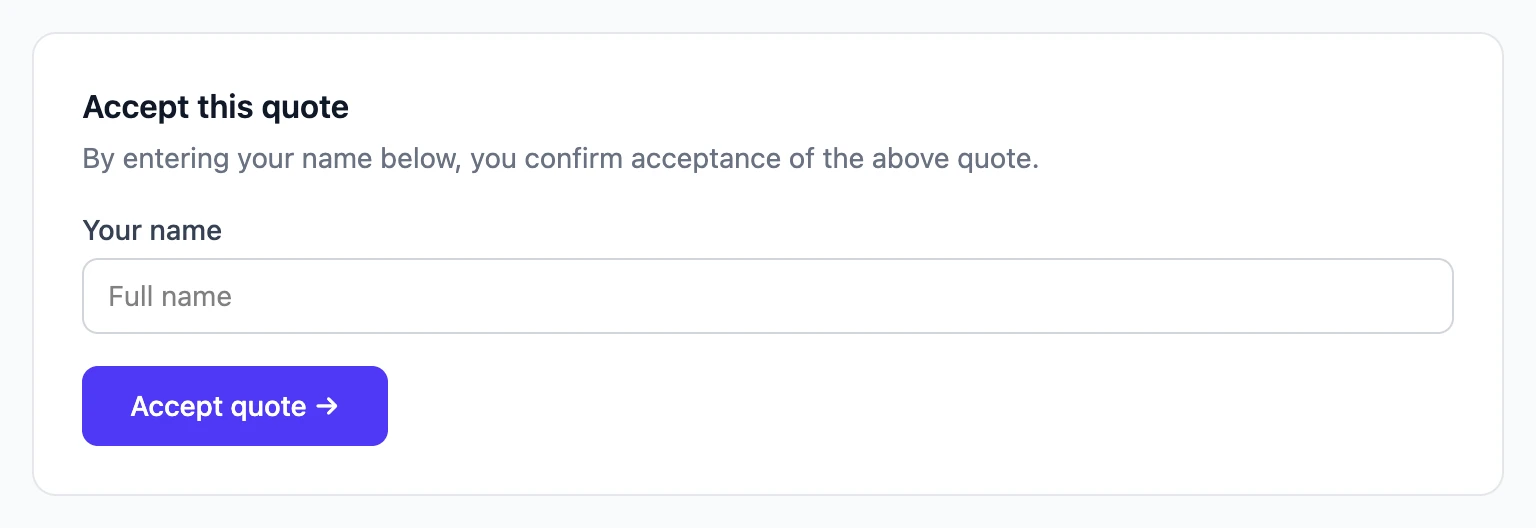
The link opens the quote on any device. At the bottom, the customer types their name and chooses Accept quote →. The quote is then marked Accepted with the date, and the customer sees a confirmation.
What the statuses mean
- Draft: not sent yet.
- Sent: emailed to the customer, waiting for an answer.
- Accepted: the customer accepted it.
- Locked: no longer editable, and no longer open for acceptance.
- Declined: the customer said no, and you marked it declined.
- Expired: sent but not answered in time. That means its expiration date has passed or, if it has none, it hasn't been updated for 30 days (you can change the number of days in Settings). Customers can't accept an expired quote.
- Estimate: shown alongside the others when the quote is marked as an estimate.
Filter the Quotes list by status to see everything waiting on a customer.
Mark a quote declined
When a customer tells you no, open the quote and choose Mark declined. You can add a reason, which only your team sees. The customer's link then says the quote was declined. If they change their mind, choose Reopen quote and it goes back to Sent.
Lock a quote
Choose Lock quote when the job is settled, or to withdraw an offer. Nobody can change a locked quote, and a customer who has not accepted it yet can no longer do so.