
Invite your team
Add people to your organization and choose what each of them can do.
Everyone who uses Prycebook for your business should have their own login, so you can see who did what and remove access when someone leaves.
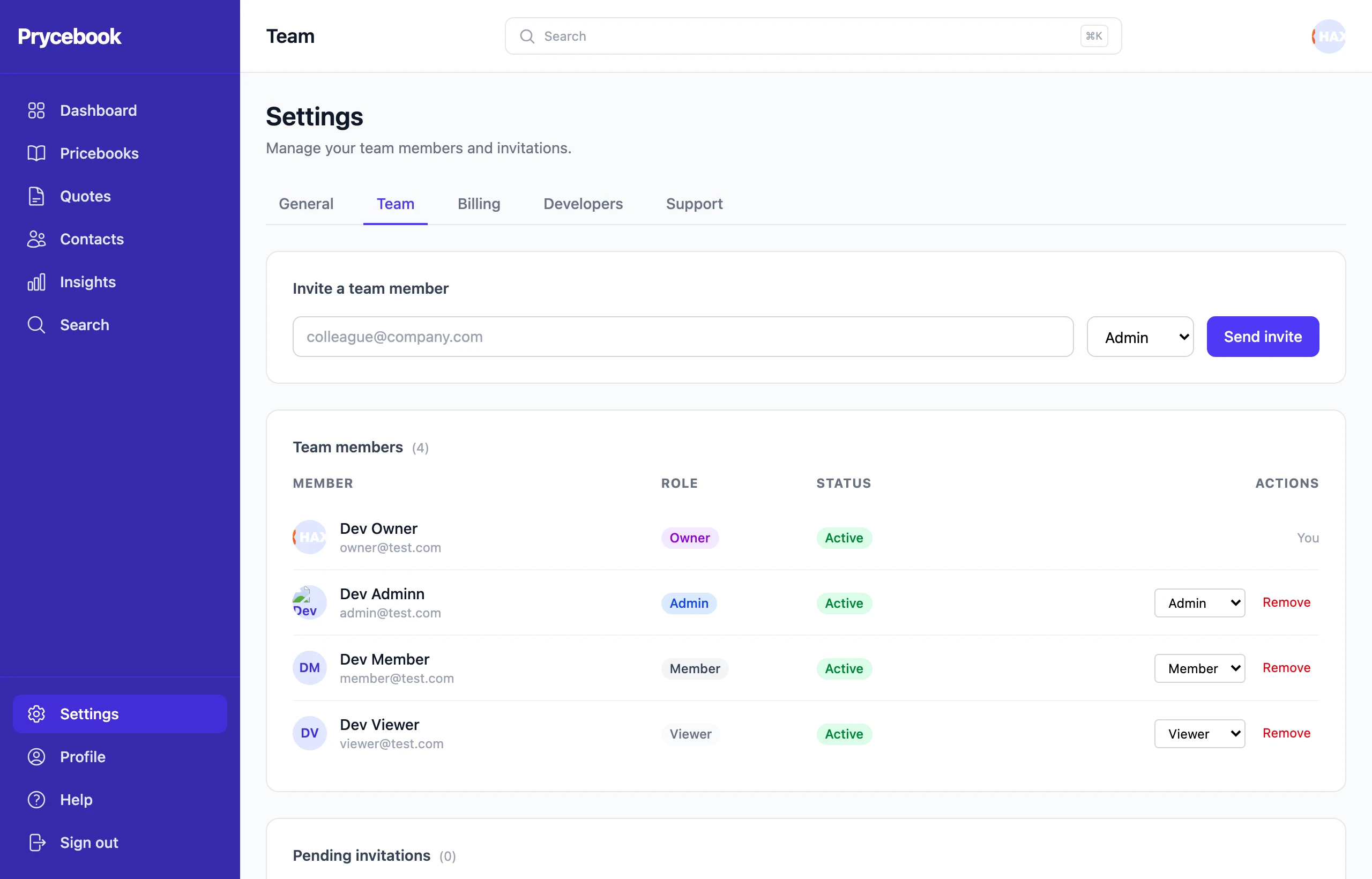
Invite someone
- Open Settings → Team.
- Under Invite a team member, enter their email address and choose a role.
- Choose Send invite. They get an email with a link to join.
Pending invitations are listed on the same page, where you can send one again or cancel it. Only admins and owners can invite people, and your plan may limit how many team members you can have.
Roles
| Role | Can |
|---|---|
| Viewer | Look at pricebooks, quotes and contacts, and download PDFs. Cannot change anything. |
| Member | Everything a viewer can, plus create and edit items, quotes and contacts, and send quotes. |
| Admin | Everything a member can, plus change organization settings, delete pricebooks, invite and manage members and viewers, and manage API keys and webhooks. |
| Owner | Everything, including billing, making someone an admin, and deleting the organization. |
Change someone's role or remove them
Admins and owners can change the role beside a member's name on Settings → Team, or remove them. You can only change the role of someone below your own role, and nobody can remove the owner. Everything a removed member created stays.
Still stuck? Open a support ticket and we will reply by email.